A QR menu for your café: how to build a digital menu that sells
What a QR menu should do, why it beats a PDF, where to put QR codes in your venue and how not to lose guests who don’t like scanning.
Vitrina team5 minute read
Contents
In short
A PDF behind a link is not yet a QR menu: a real one is made of website pages that Google can see.
A good QR menu opens without an app, shows only what is available and speaks the guest’s language.
Put the code on every table with its number, in the window, on the delivery bag and in your social profiles.
Keep a few printed menus at the counter: a QR code doesn’t replace an attentive waiter.
A QR menu is a website, not a picture
The simplest QR menu is a PDF behind a link. It is easy to make but awkward to use: the file is hard to scroll on a phone, its prices are out of date the day they change, and Google cannot see such a menu.
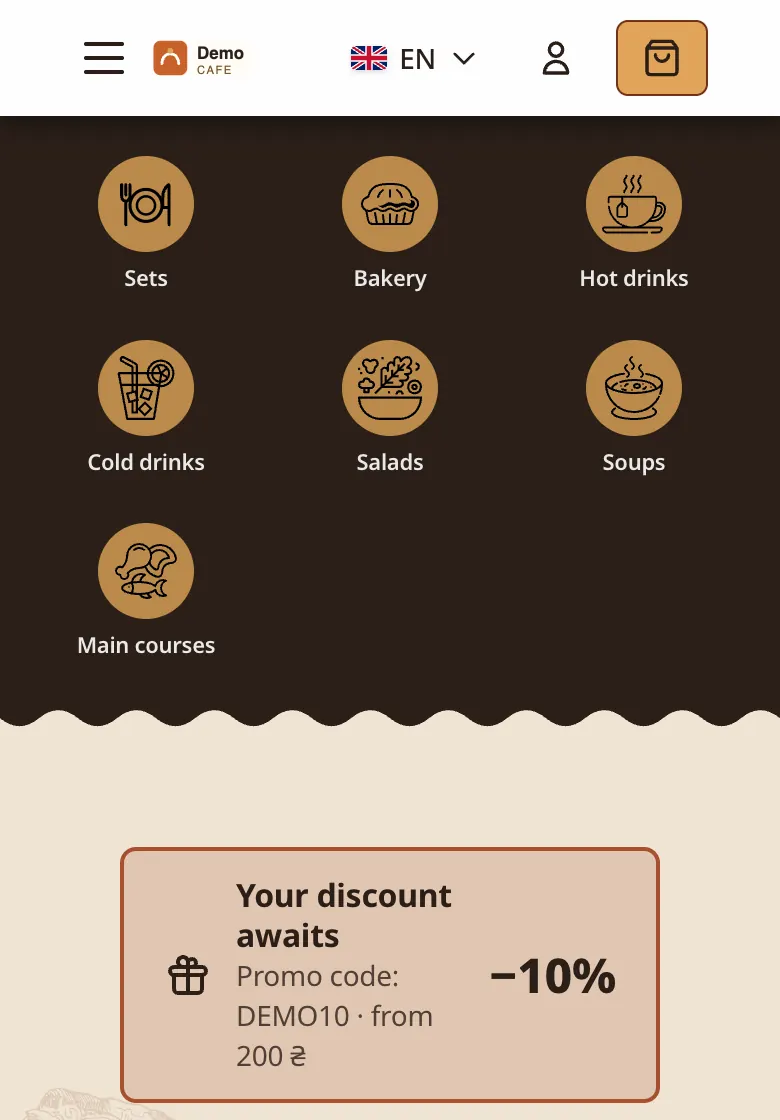
A proper QR menu is made of website pages: sections, dishes with photos, portions and prices that change in one place.
| What we compare | PDF behind a link | Menu website |
|---|---|---|
| On a phone | You zoom in and scroll a file | Sections and dishes sized for a thumb |
| Prices | Out of date the day they change | Changed in one place, updated everywhere |
| Google search | The menu is invisible | Every dish has its own page |
| A dish runs out | The guest hears it from the waiter | Marked sold out, it can’t be ordered |
What a good QR menu should do
Check your QR menu
Opens without an app. The guest scans the code with the phone camera and sees the menu in the browser.
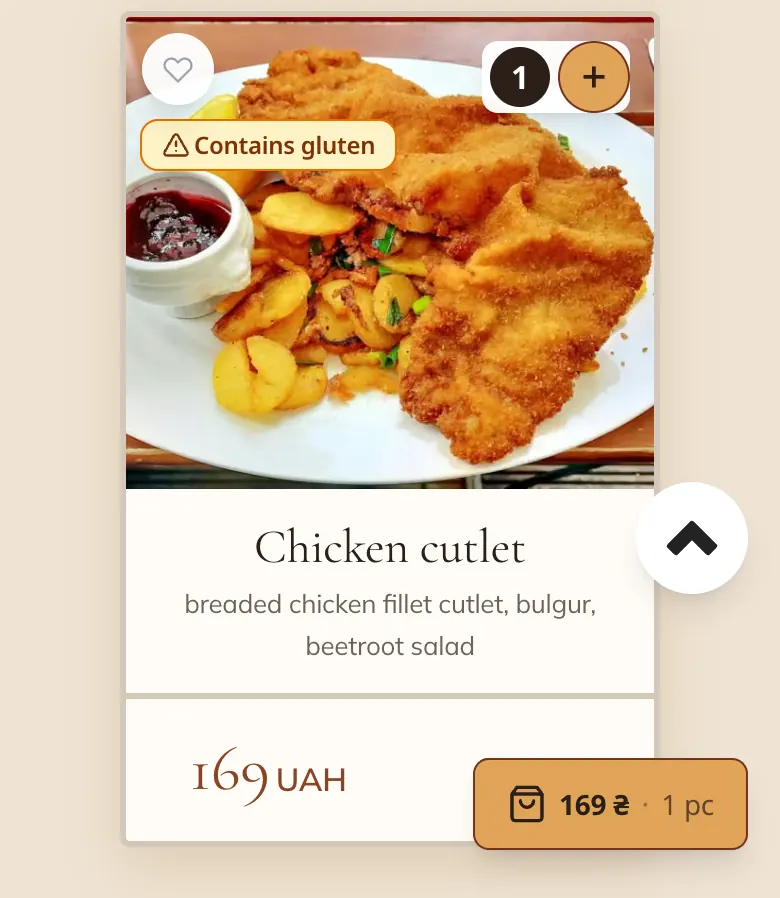
Shows what is actually available. A dish has run out: it is marked as sold out and cannot be ordered.
Speaks the guest’s language. Tourists and visitors read the menu in their own language instead of translating photos of dish names.
Flags allergens. The guest sees that a dish contains nuts or gluten before ordering.
Gives every dish its own page. Then Google can find the dish, and a link to it can be shared on Instagram.
Takes orders when you are ready. Today the menu only shows dishes; tomorrow the same QR code on the table takes orders.
Where to put QR codes
- On every table, with the table number, so orders arrive marked “Table 5”.
- In the window and by the entrance: for people deciding whether to come in.
- On the delivery bag and a flyer, so next time the guest orders directly.
- In your Instagram bio and Google Business Profile: the same link, without a code.
Don’t forget the guests who don’t scan
Some guests don’t use QR codes: some dislike phones at the table, some have a flat battery. Keep a few printed menus at the counter: a QR menu doesn’t replace an attentive waiter.
How to update the menu without a print shop
Prices and ingredients change more often than you’d like. The main advantage of a digital menu is editing in one place: change a price in the admin panel, and the website and the QR menu show the new one. You switch seasonal dishes on and off without reprinting a single card.
How Vitrina does it
The Vitrina menu lives on your domain: photos, portions, variants, sides and allergen labels, translation into your guests’ languages and a separate page for every dish. The admin panel prints QR cards with table numbers on one sheet, and ordering at the table comes already with the “Start” plan.
Frequently asked questions
Does the guest need an app to open a QR menu?
No. A modern phone camera recognises the QR code by itself and opens the menu in the browser, with nothing to install.
Can a QR menu take orders at the table?
Yes, once you are ready for it: the same QR code on the table opens the menu with the table number, and the order goes to your staff. How it works in Vitrina is on the ordering at the table page.
How do I show allergens in a QR menu?
Mark them on the dish card so the guest sees them before ordering. Vitrina has labels for the 14 EU allergens; the guest sees a label once a person has checked it. More on the QR menu page.